How to Pass a Trading Challenge on cTrader Mobile (Without Costly Mistakes)
Can you pass a prop firm challenge on your phone? Yes. And cTrader Mobile has everything you need to make it happen. If you know how to set Stop Loss on cTrader Mobile, manage risk, place pending orders, and use tools like Price Alerts or Crosshair, you can pass a prop firm challenge without ever opening your desktop. In this article, we’ll show you exactly how to pass a trading challenge on mobile.
Trading on mobile? Yeah, it works. And surprisingly well. But only if you know what you’re doing.
Most traders fail a trading challenge not because their strategy is bad, but because they don’t manage risk, they chase the market, and they act on impulse. And when it comes to trading on mobile, this becomes even easier to mess up.
The good news? cTrader Mobile trading gives you everything you need. You just have to start using it properly. And that’s exactly what you’ll learn in this article. Along with practical prop firm challenge tips you can apply immediately.
Choose the platform that fits your trading DNA
We compared MetaTrader 5, cTrader and TradingView. What are their features, strengths and differences?
3 Key Principles to Pass a Trading Challenge on cTrader Mobile
1. Risk management: where the challenge is won or lost
If there’s one thing that determines whether you pass a trading challenge or not, it’s risk. Not entries. Not indicators. Risk. On cTrader Mobile, you have a major advantage: you can see everything clearly in front of you, directly in the chart, in numbers, and in real time.
Stop Loss and Take Profit: your best friends during a challenge
When placing a trade, you can set your Stop Loss and Take Profit directly in the order window or right on the chart. All you need to do is enable the display of positions and levels. Then you simply drag these levels to where they actually make sense.
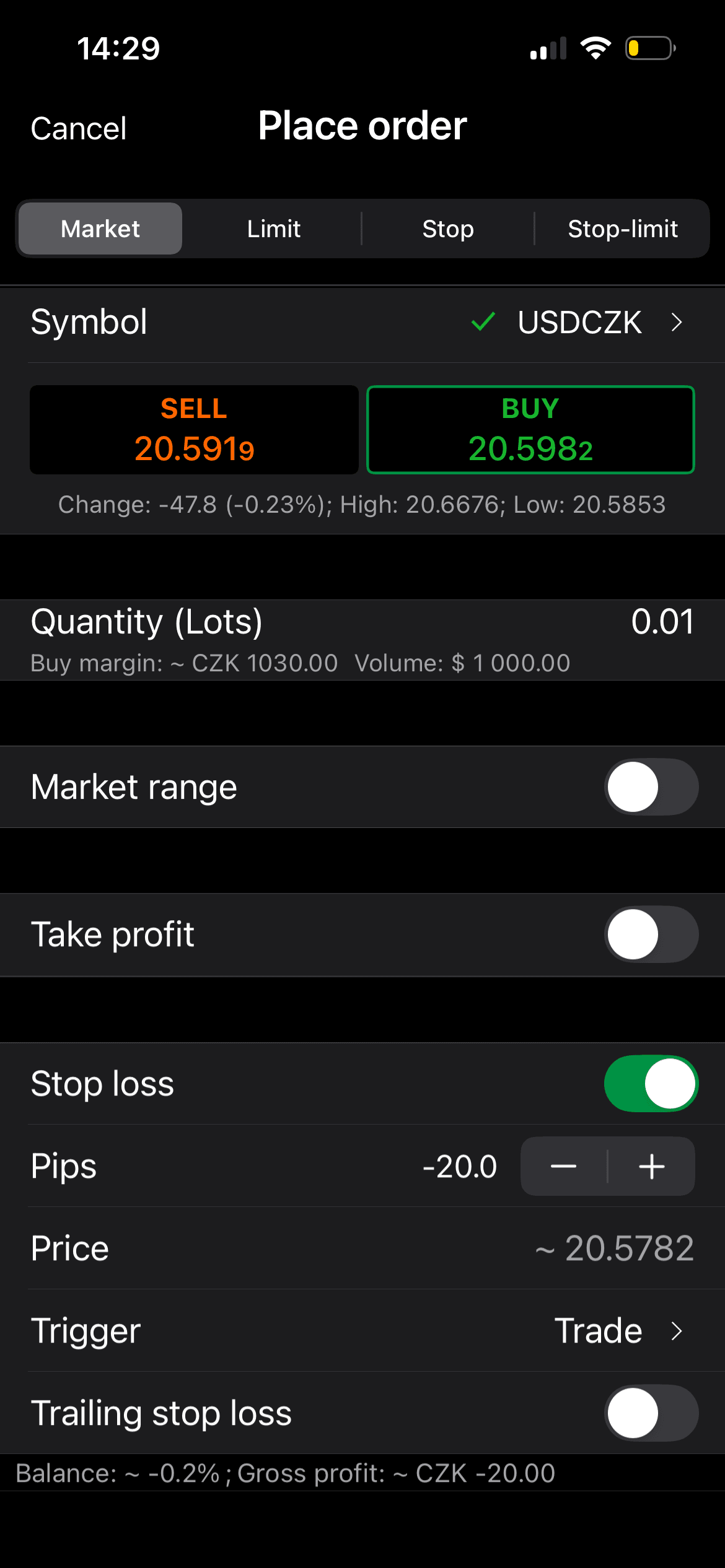
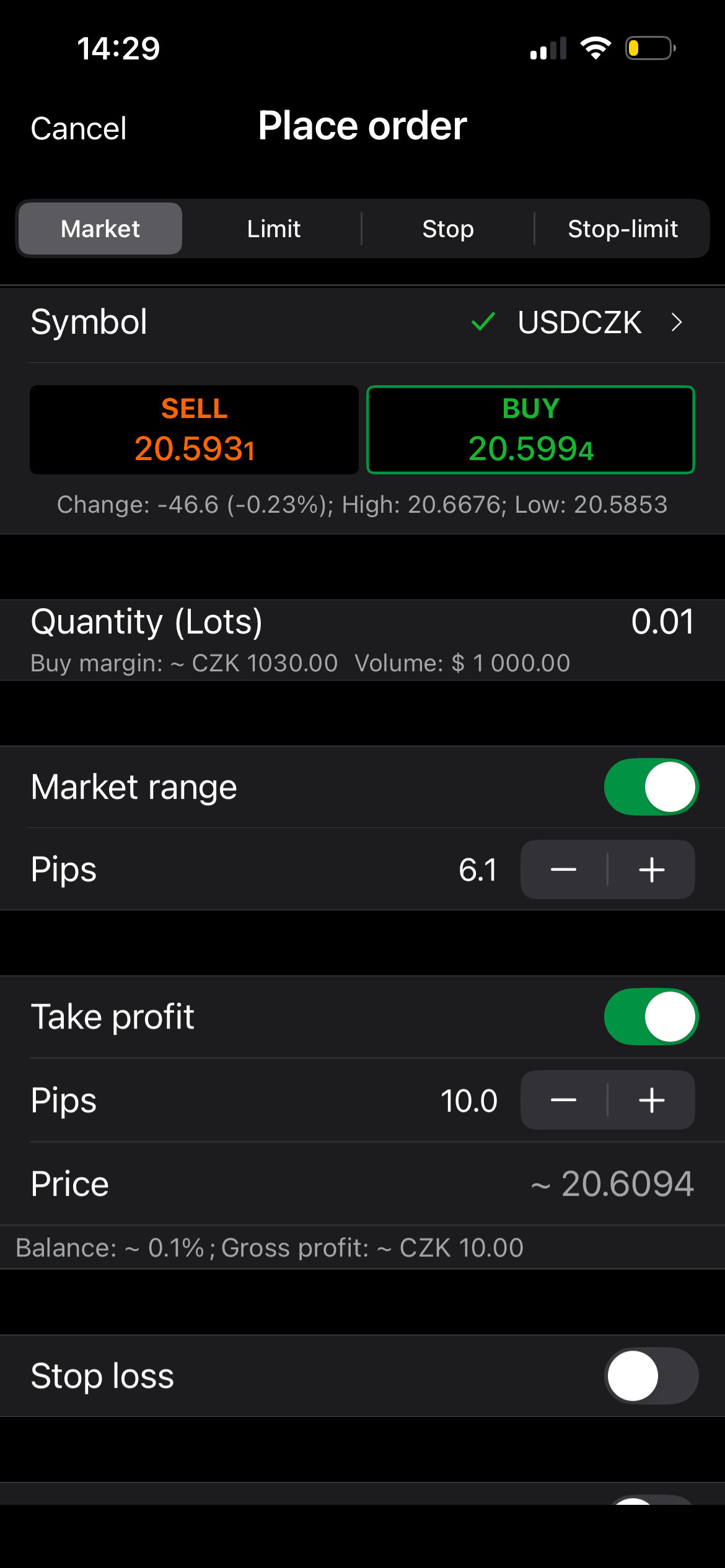
Setting up Stop Loss and Take Profit in the Advanced market order tab. Both SL and TP orders can be easily adjusted by tapping and dragging in the chart.
No guessing. No, “I’ll just place it somewhere.” The moment you start working with Stop Loss consciously, you finally gain control over how much you’re risking. And at that point, your chances of passing a trading challenge increase significantly. This is the foundation of any solid trading challenge strategy.
💡 Fintokei tip
You can find your open trades in the Positions tab, and your pending orders in Orders.
Trade Risk / Volume: trust, but verify
Another critical feature is Trade Risk / Volume calculation. When placing a trade using the Advanced Order window, you don’t just see the Volume, but also the actual impact on your account. cTrader shows you the risk in pips as well as in your account currency.
At that moment, you know exactly whether you are risking €10 or €100. Based on that, you adjust your position size. This directly answers one of the most important questions traders ask: how much risk per trade in a prop firm challenge. This is the detail that separates professionals from amateurs — complete control and precise risk calculation for every position.
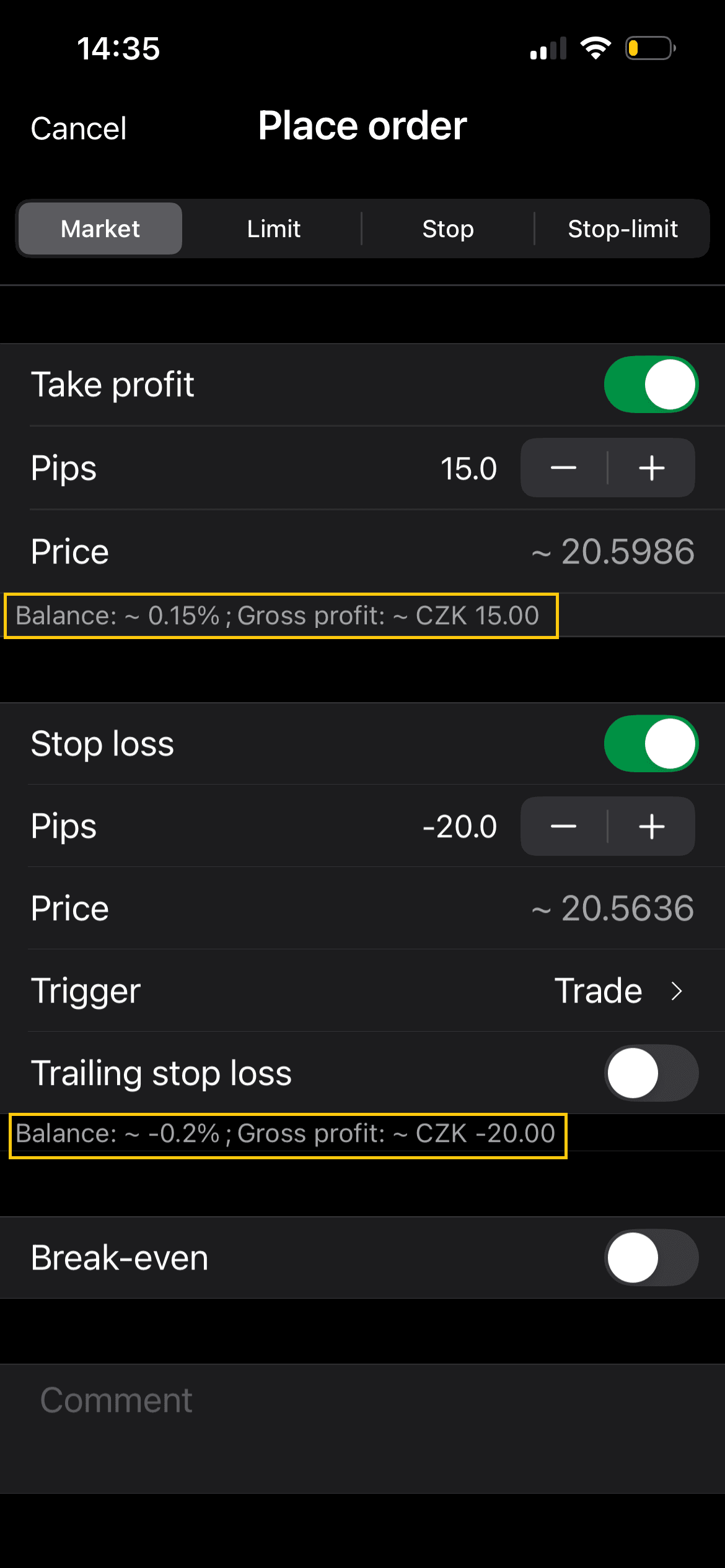
Precisely calculated risk for every SP or TP order
Choosing an instrument and setting up a position using the Advanced order
Trailing Stop protects both your profit and your downside
If your trade moves into profit, you can activate Trailing Stop. It automatically adjusts your Stop Loss as the price moves in your favor. When the market continues in your direction, you lock in profit. When it reverses, the trade closes earlier, protecting your gains.
It’s a simple feature, but extremely effective, especially when you’re trying to pass a prop firm challenge and maintain consistency.
💡 Fintokei tip
Not satisfied with your position? You can always Modify it, partially close it using Partial Close, or fully Close Position at any time.
2. Trade execution: fewer clicks, fewer mistakes
On mobile, there’s no space for hesitation. You either know what you want to do… or you don’t trade.
One-tap execution with QuickTrade
This is where QuickTrade becomes powerful. Once enabled, you can place a Market Order with a single tap directly from the chart using the Buy or Sell buttons.
Inside Settings → QuickTrade, you can predefine your Volume, Stop Loss, and Take Profit. This means you don’t need to deal with details under pressure. You simply tap, and the trade is executed exactly as you planned.
This is a key part of any effective mobile trading strategy.
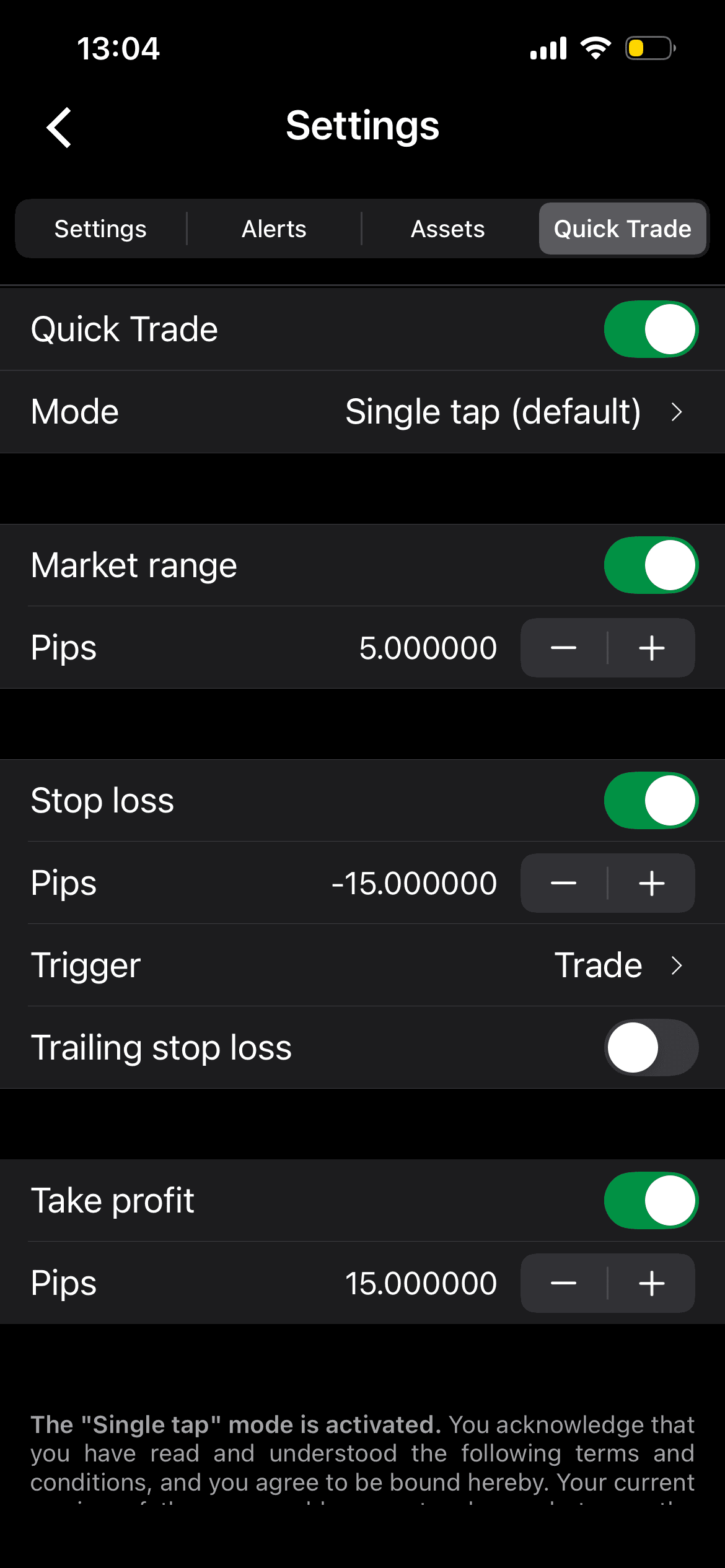
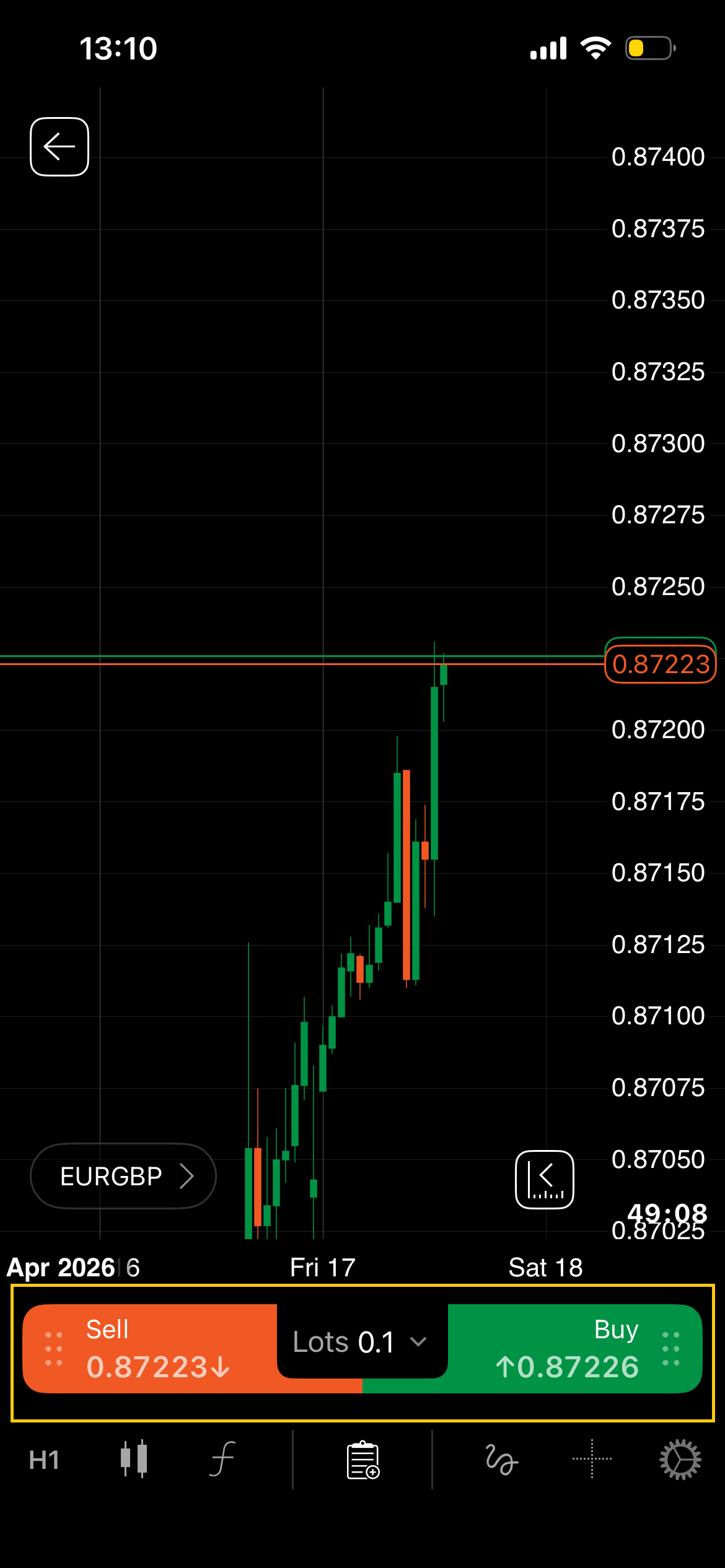
You can preset your SL, TP, and market range for every position made by the QuickTrader feature. Just go to settings -> QuickTrade
Pending Orders save your time, and your discipline
Even more important are Pending Orders. In cTrader Mobile, you’ll find them as Buy Limit, Sell Limit, Buy Stop, and Sell Stop.
- Buy Limit and Sell Limit are used when you expect the price to reach a certain level and then reverse. These are typically used when trading potential trend reversals.
- Buy Stop and Sell Stop are used when you want to enter the market as the price breaks a level and continues further. These are ideal for trend-following strategies.
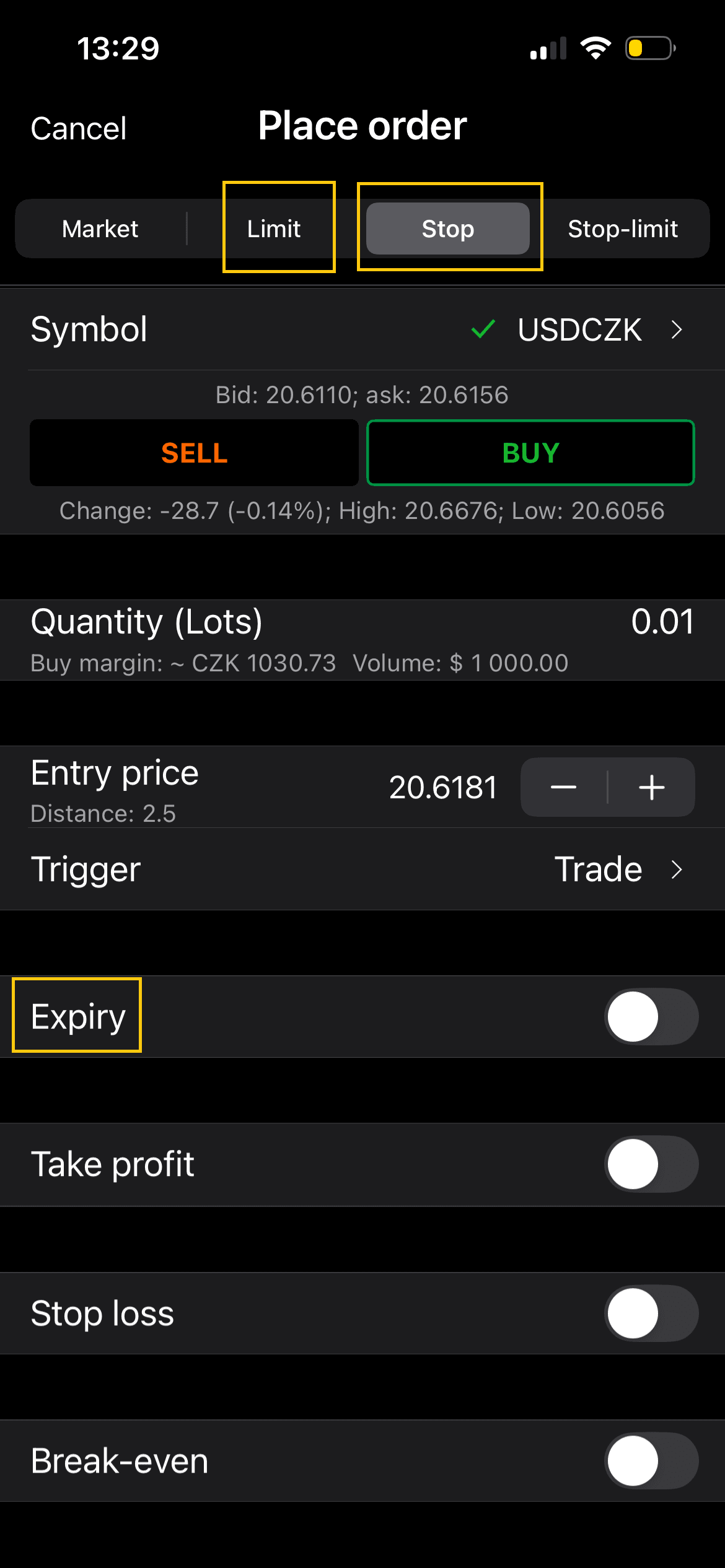
Instead of sitting in front of the chart waiting for something to happen, you define your entry in advance. You set your exact price and can even define Expiration if needed. Then you simply wait.
Understanding how to use pending orders in trading is one of the easiest ways to stay disciplined and follow your trading plan. This is where trading stops being impulsive and starts becoming a system. You’re no longer chasing the market; the market comes to you. This is also one of the most effective ways how to avoid breaking prop firm rules and how to trade without overtrading.
💡 Fintokei tip
Use the Expiry feature to automatically cancel orders. This is especially useful if you don’t want positions to stay active over weekends or during uncertain market conditions (image below).
💡 Fintokei tip
If you want to dive deeper into risk management for prop firm challenge, check out this article.
3. Discipline and control: trading without impulses
The hardest part of trading is mindset. Beginners focus on indicators and strategies. Professionals focus on psychology and emotional control. And even here, your mobile trading app can actually help you.
Set Price Alerts and reduce screen time
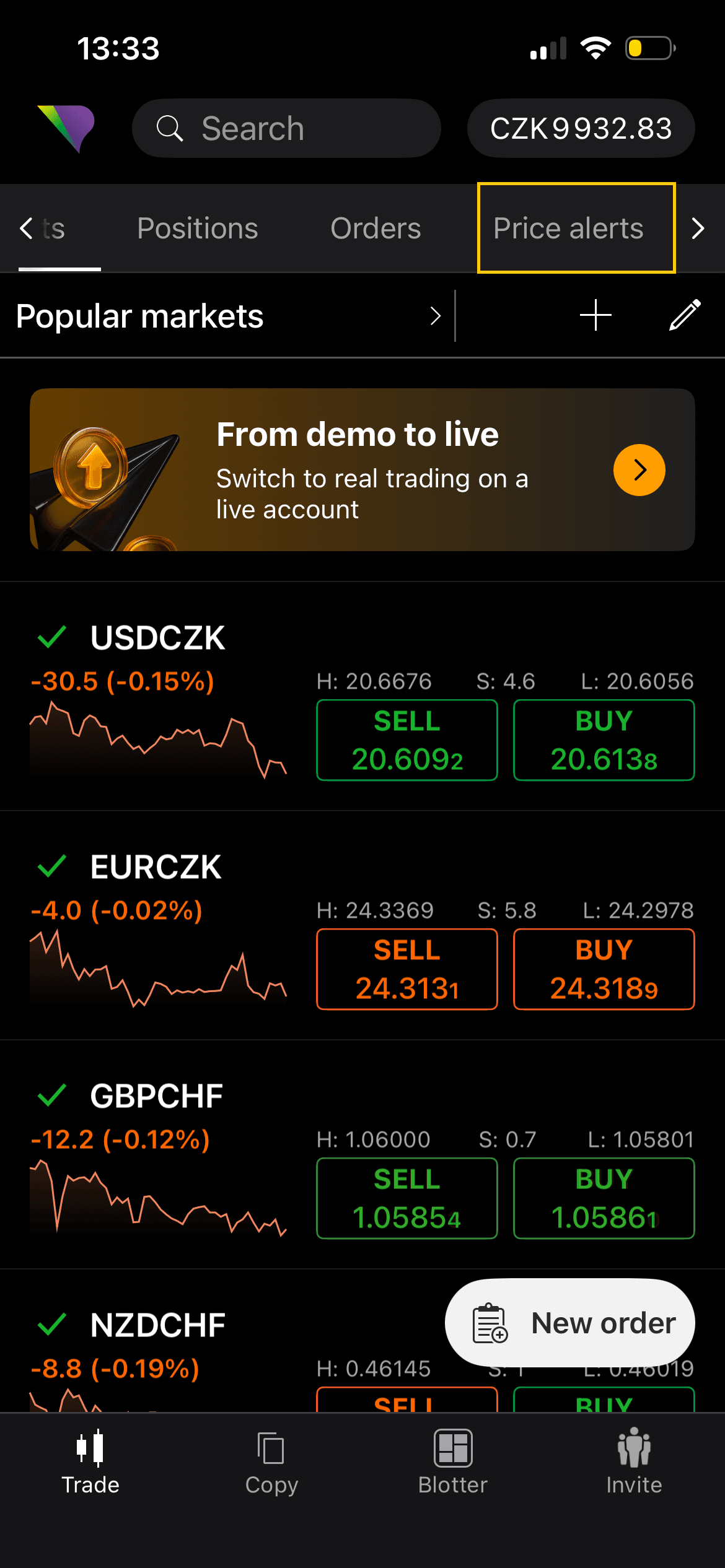
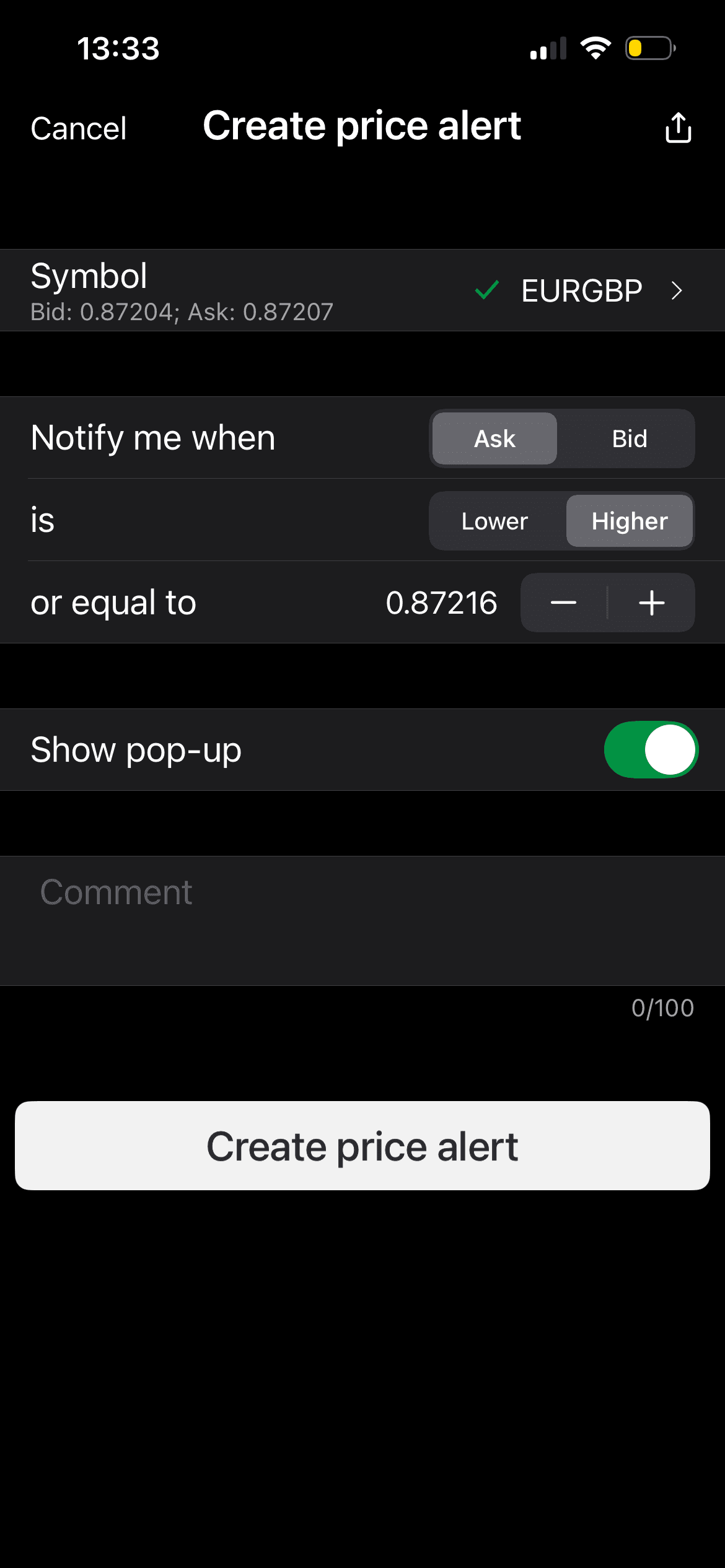
One of the biggest traps of trading on mobile is that it’s always with you. The temptation to constantly check charts is real. That’s why Price Alerts are so powerful.
In cTrader Mobile, you can set a price alert directly on a specific instrument. Once the price reaches your level, you’ll receive a notification on your phone or even your smartwatch. You don’t need to watch every move. You don’t get pulled into unnecessary trades. This is a key part of how to stay disciplined in trading.
Measure first, trade second, using Crosshair
When you’re already in the chart, the Crosshair tool becomes extremely useful. It’s part of the core cTrader platform tools and allows you to measure both price distance and time.
You can see exactly how many pips your Stop Loss represents and how long a move has taken in the past.
This gives you context before entering a trade. You’re no longer clicking randomly. You’re making informed decisions. This is one of the best ways to manage trades on mobile effectively.
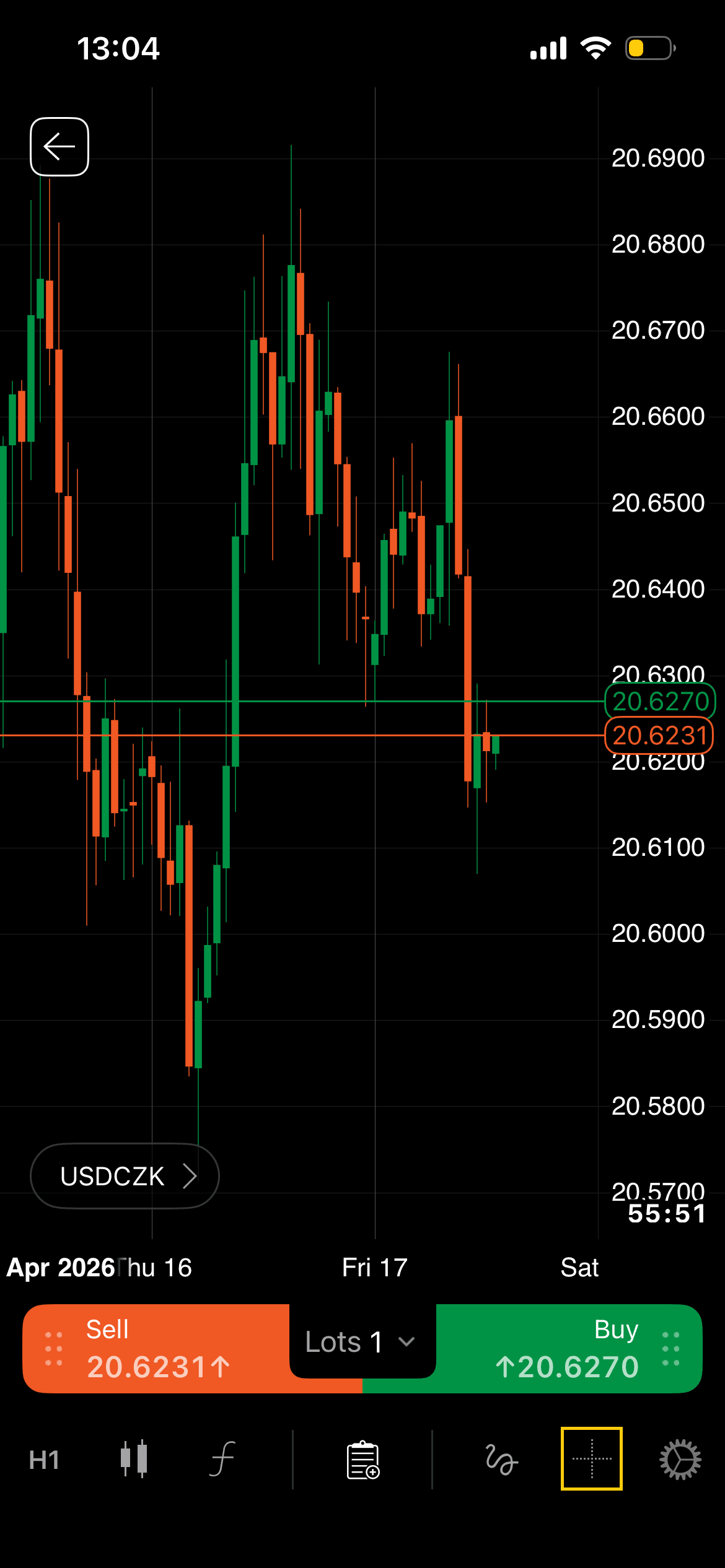
To use the Crosshair, just tap on the cross in the bottom-right corner…
… then just tap and drag to start measuring in pips.
💡 Fintokei tip
Do you know the four emotions that can destroy your prop trading results? Read this article.
So… can you pass a trading challenge on mobile?
Yes. But it’s not about luck.
It’s about understanding how to pass a trading challenge, managing risk properly, executing trades with precision, and staying disciplined.
It’s about knowing how to use Stop Loss, controlling your Volume, entering trades intentionally using Market or Pending Orders, and letting tools like Price Alerts and Crosshair help you stay focused. This is exactly what cTrader Mobile trading allows you to do.
But remember, the platform is just a tool. Your results depend on how you use it.